Step-by-step (select your phone type)
- Download the movie (usually in Downloads).
- Plug the flash drive into your phone using the correct port:
- Type-C phone → use the Type-C + USB flash drive.
- Micro-USB phone → use the Micro-USB OTG + USB flash drive.
- Open File Manager → find the movie file.
- Select the file → tap Copy or Move → choose the USB drive.
- Wait for transfer to finish, then remove the drive.
- Plug the drive into the TV USB port → open TV Media/USB → play the movie.
If the TV can’t see the file:
format the drive as FAT32 or exFAT, and use common formats like MP4.
- Download the movie (Files app or browser downloads).
- Plug in the multi-connector flash drive using the Lightning side.
- Open Files → find the movie → Share → save/copy to the USB drive location.
- After transfer, remove the drive.
- Plug into the TV USB port → open TV Media/USB → play the movie.
Tip: If the drive doesn’t appear in Files, unplug/replug it, then reopen Files.
The 3 Flash Drives (use the correct connector)
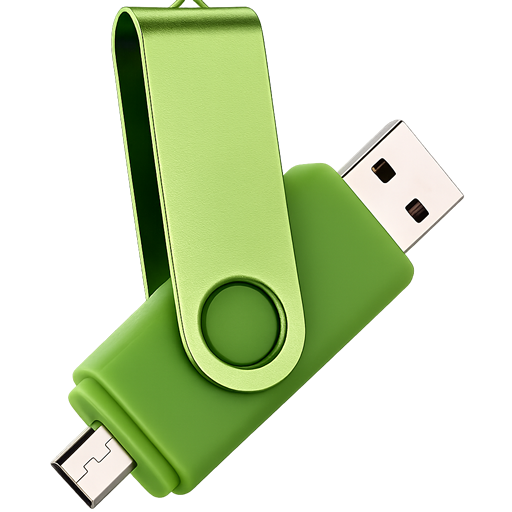
1) Micro-USB OTG + USB
For older Android phones with Micro-USB. Micro-USB into phone, USB into TV.
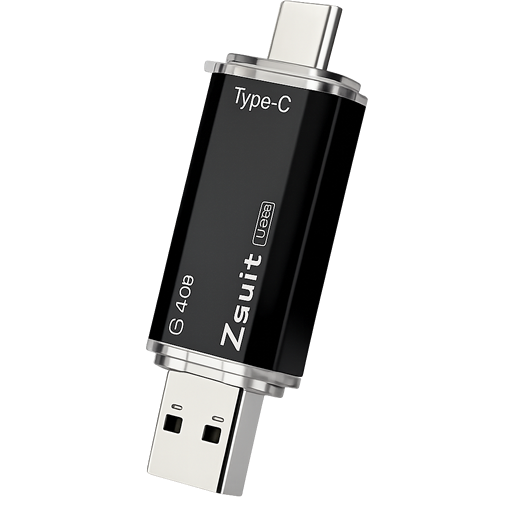
2) Type-C + USB
For Android phones with Type-C. Type-C into phone, USB into TV.
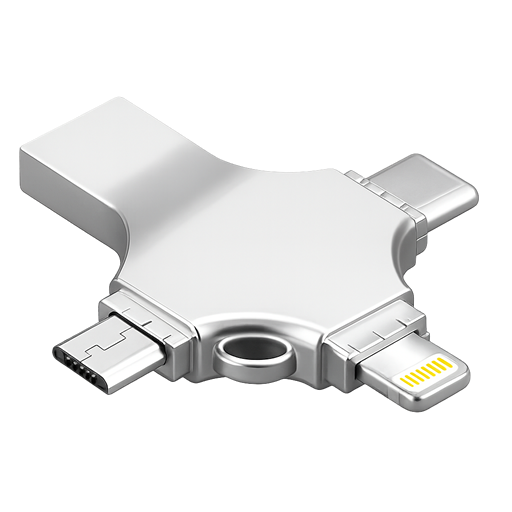
3) Multi-Connector (Lightning/Type-C/Micro-USB/USB)
Best for mixed devices. Use the matching connector for your phone, then USB for TV.
Important: Always wait until copy completes before removing the drive, or the video may corrupt.